
If your product image looks correct in Flexify but Meta displays a different image in a catalog ad, this does not necessarily mean that your Flexify image settings are incorrect.
Flexify provides a consistent set of product images through the feed. If an unexpected image appears in Meta, first check which data sources are providing image information to the catalog.
How does Flexify provide images to Meta? #
When you use Image Templates, Flexify uses the same product image data consistently throughout the feed:
- the featured image (Image Link) contains the 1:1 Image Template version
- the additional images (Additional Image Link) contain other enabled Image Template formats, such as 4:5 and 9:16, together with the Shopify product or variant images included as additional images
- Flexify also provides Meta's Image field, which contains image media with tags indicating the preferred 1:1, 4:5, or 9:16 aspect ratio.
Features such as Automatic Image Optimization and Image Templates work differently when selecting source images.
Automatic Image Optimization uses the featured Shopify product image as its source image.
Image Templates use the image selected for each Product image layer. Product image 1 uses the featured Shopify product image by default, but you can also select one of the product's additional images.
Shopify additional product images that are not selected as Image Template source images are not automatically transformed. They can still be included as additional images alongside the generated Image Template formats.
Example #
A product has:
- one 1:1 Image Template version
- 4:5 and 9:16 Image Template versions
- five Shopify product images used as additional images
Flexify provides the 1:1 Image Template version as the featured image. The 4:5 and 9:16 generated versions, together with the existing Shopify images, are included as additional images.
The corresponding image media and aspect-ratio tags are also provided to Meta.
Why can Meta display a different image? #
If the expected images appear correctly in Flexify and in the generated feed, the discrepancy may be caused by conflicting catalog data sources, automatic catalog media updates, or Meta's ad-level image optimizations.
This is especially important if you use the Shopify Product Catalog with Flexify Extension mode. In this setup, the catalog already receives data from Shopify's native Facebook & Instagram sales channel, while Flexify provides additional data through a supplementary feed.
Other feeds or data sources may also be connected to the same catalog and may provide different image values.
Meta may therefore be using image information from:
- Shopify's native sales channel data source
- the Flexify supplementary feed
- another connected feed or data source
- Media automatically added or updated by Meta independently of your connected feeds
- Meta's own ad-level image selection or creative optimizations
Note: Meta may adapt the featured image for a placement instead of selecting an untagged additional image with a matching aspect ratio. For example, if only a 1:1 Image Template format is enabled, Meta may adapt the 1:1 image for a 4:5 placement even when the product has an additional 4:5 Shopify image.
What should I check in Flexify? #
First, check the affected product in Flexify and confirm that the expected featured and additional images are present.
If needed, you can control which Shopify images are included in the feed.
You can also define featured and additional images using Shopify metafields. See Enhancing Your Feeds for Meta with Custom Featured & Additional Images.
How can I verify where the different image is coming from? #
If the images look correct in Flexify, check the same item in Meta Commerce Manager:
- Under Data Sources → Data Feeds → All Data Sources, review the connected feeds by their feed URLs and check whether another source is providing image data.
If you use the Shopify Product Catalog with Flexify Extension mode and the Flexify Supplementary Feed:
Shopify's Facebook & Instagram sales channel provides the primary catalog data, while Flexify provides additional data through a supplementary feed. Review all connected sources and their feed URLs.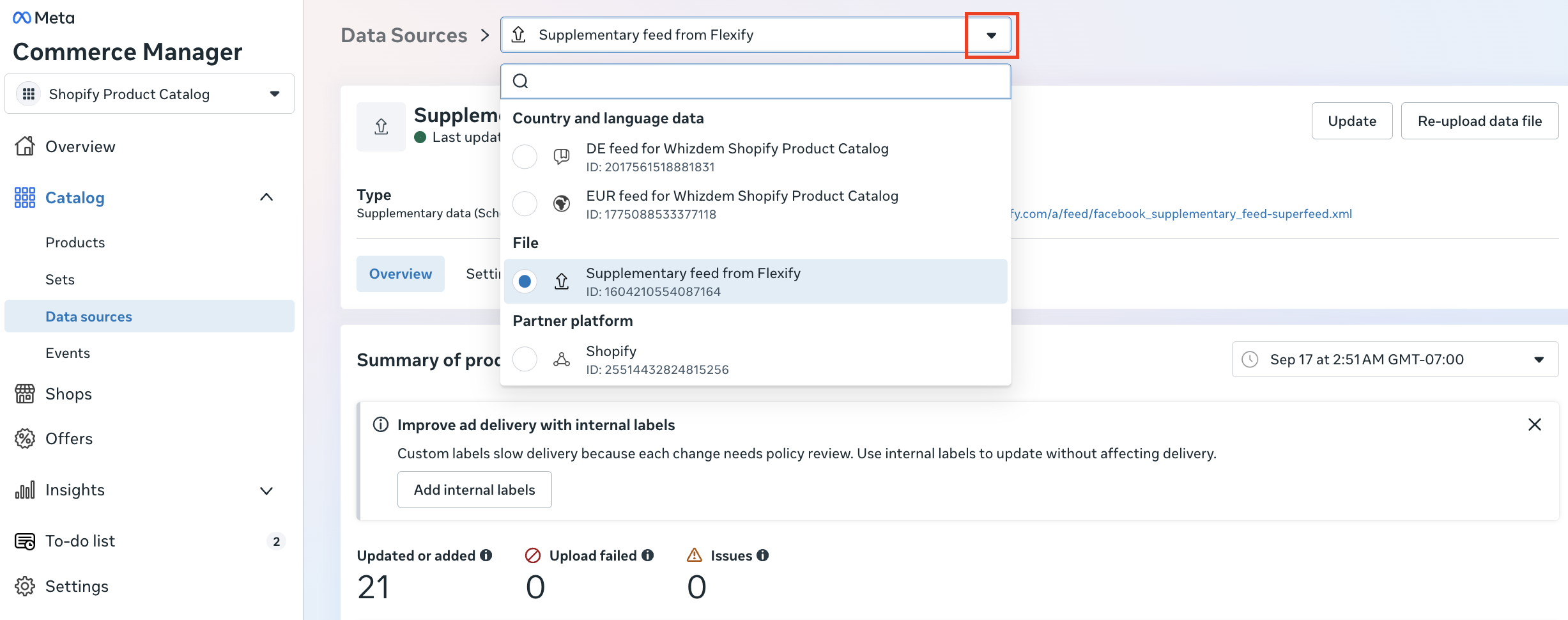
If you use a custom Meta catalog with Flexify Stand-alone mode:
Flexify provides the primary product data through the Stand-alone feed. Check whether any additional feeds or data sources are connected to the same catalog and may also be providing image information.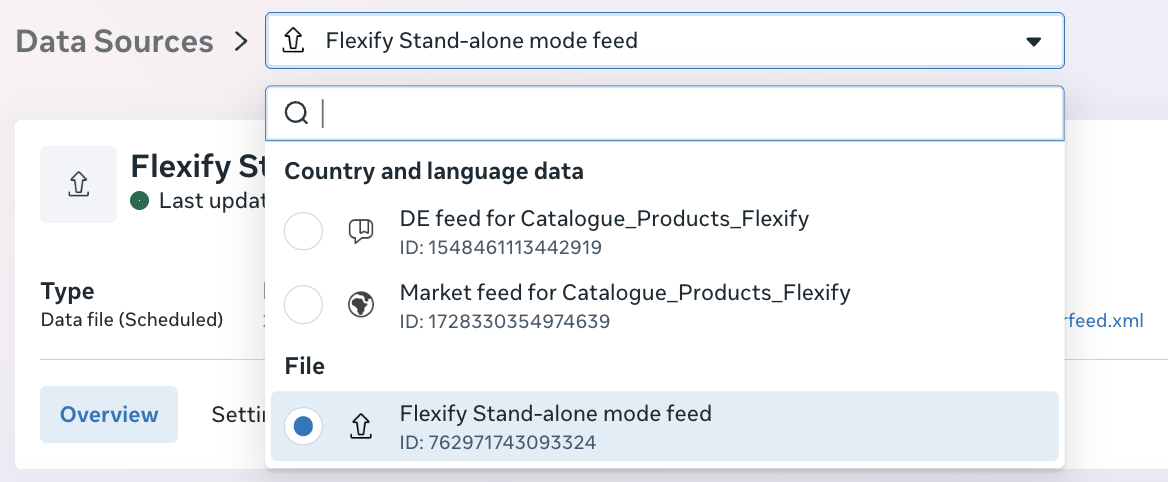
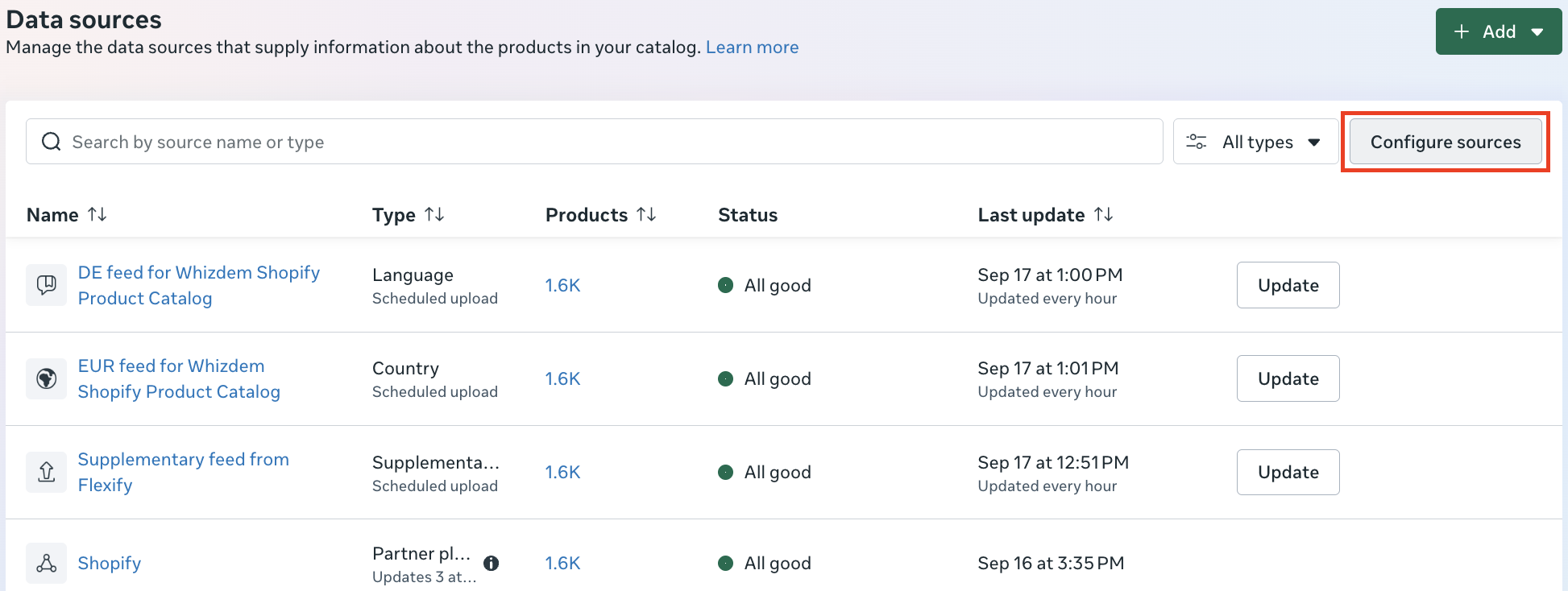
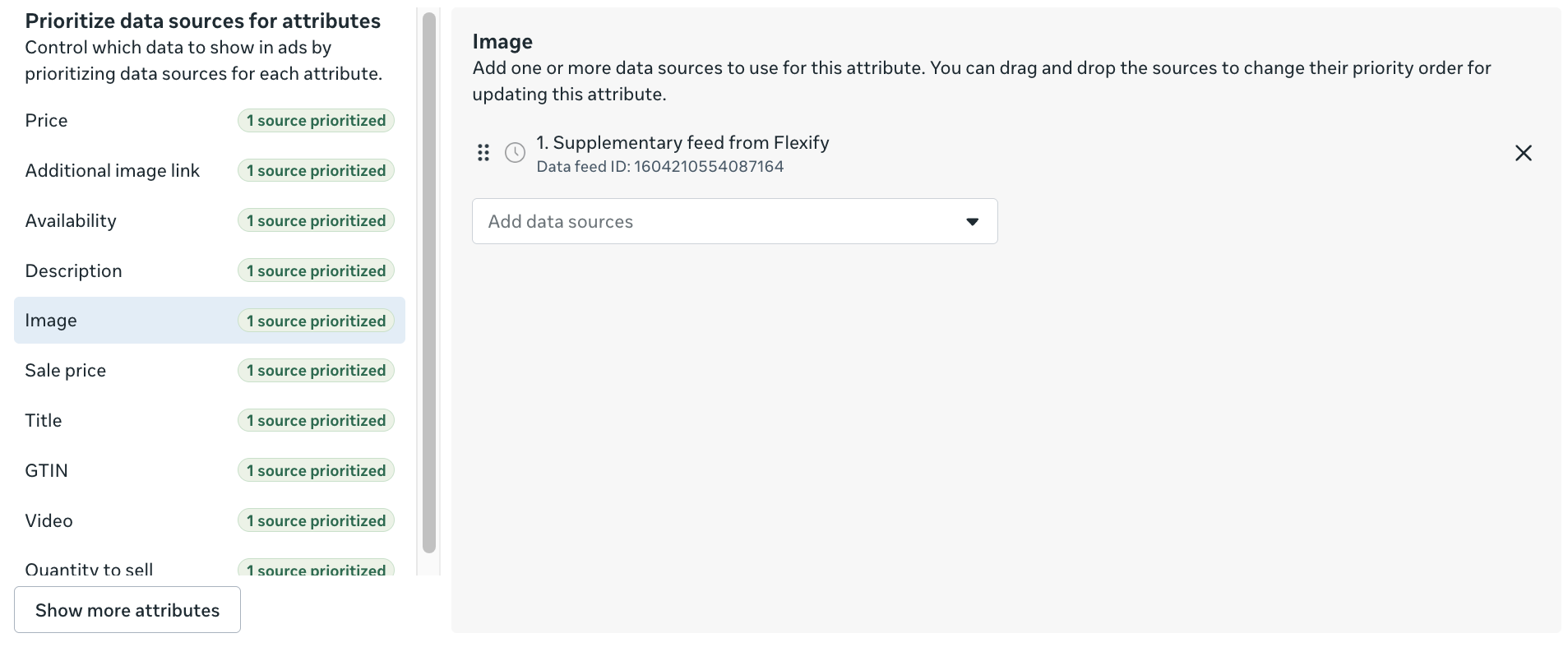
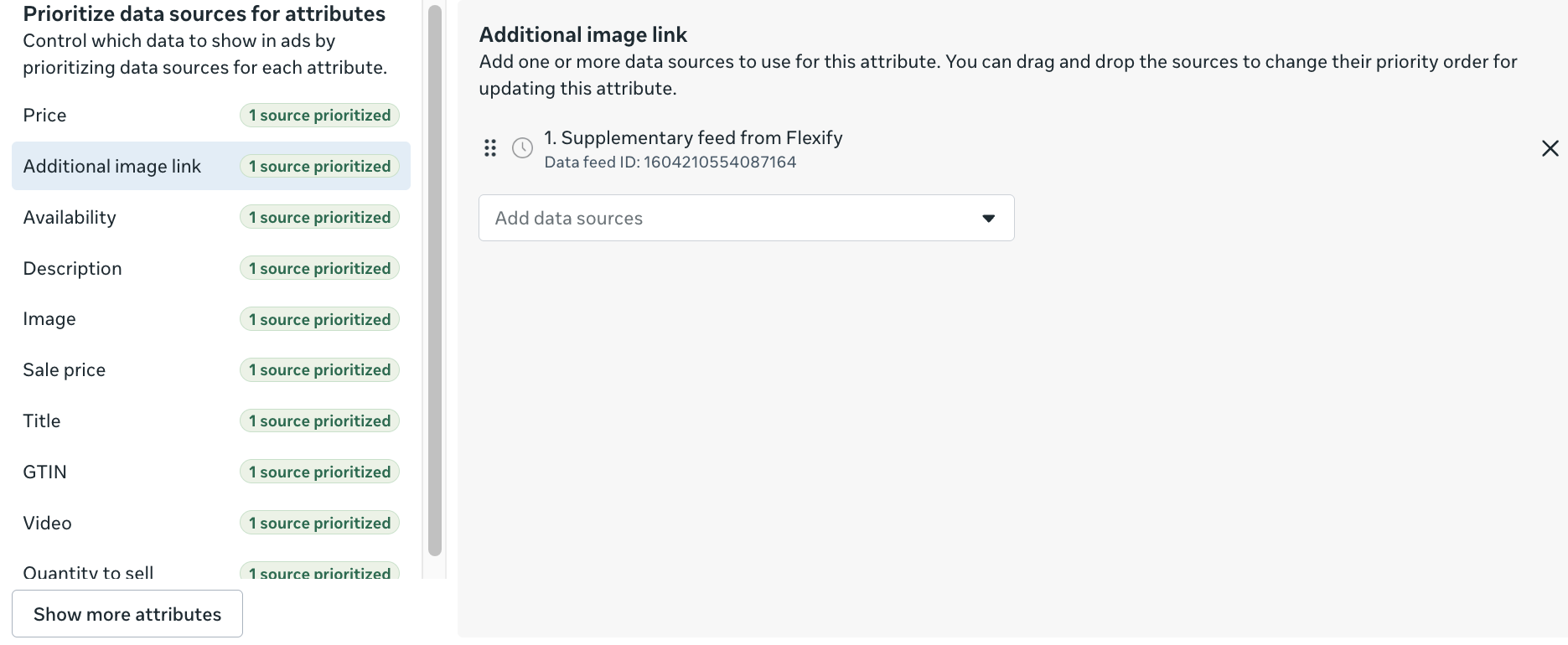
- If you use the Shopify Product Catalog with Flexify Extension mode, open Configure Sources and make sure the Flexify Supplementary Feed is configured as the single and only data source for Image, Additional Image Link, and Video (if applicable).
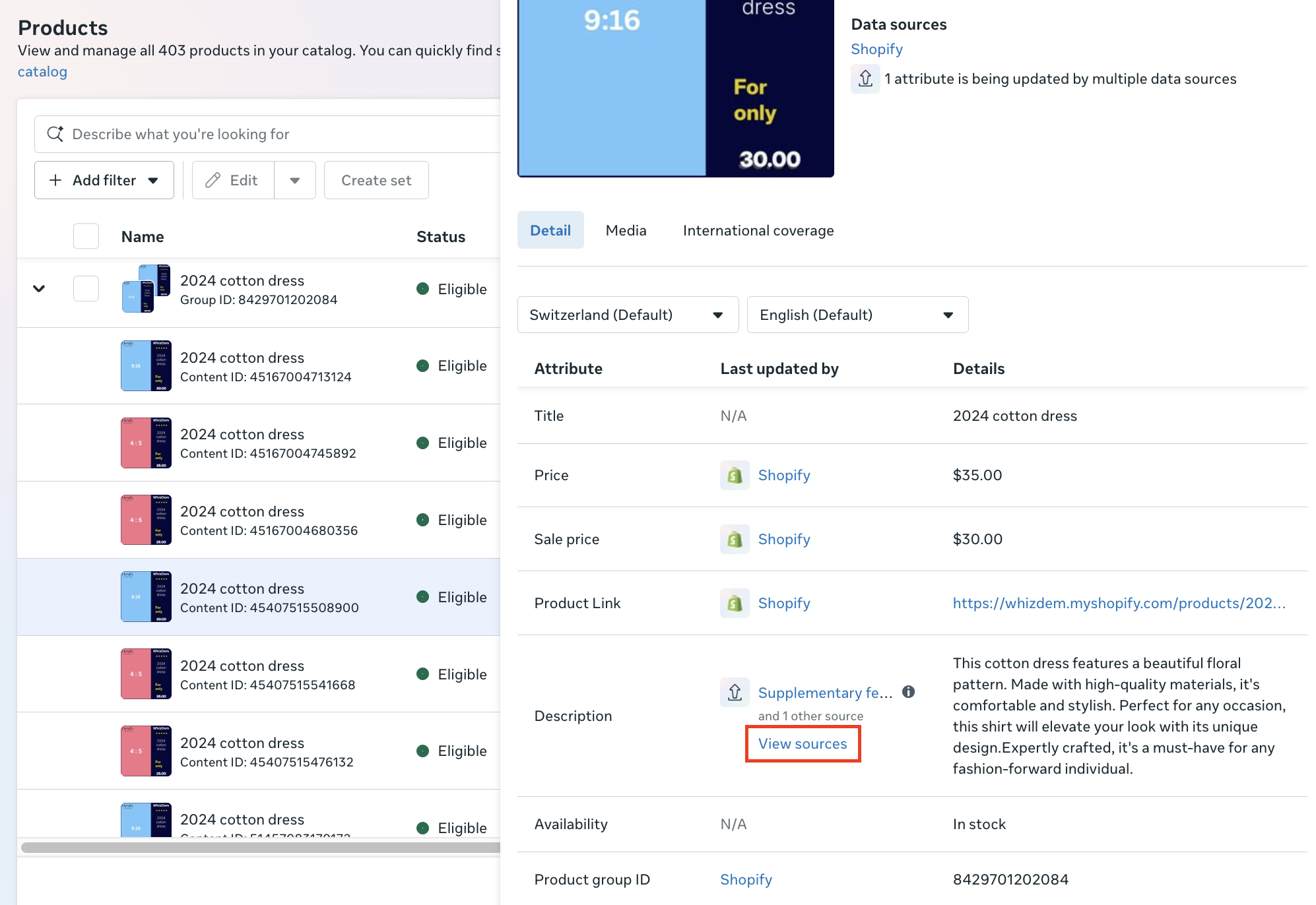
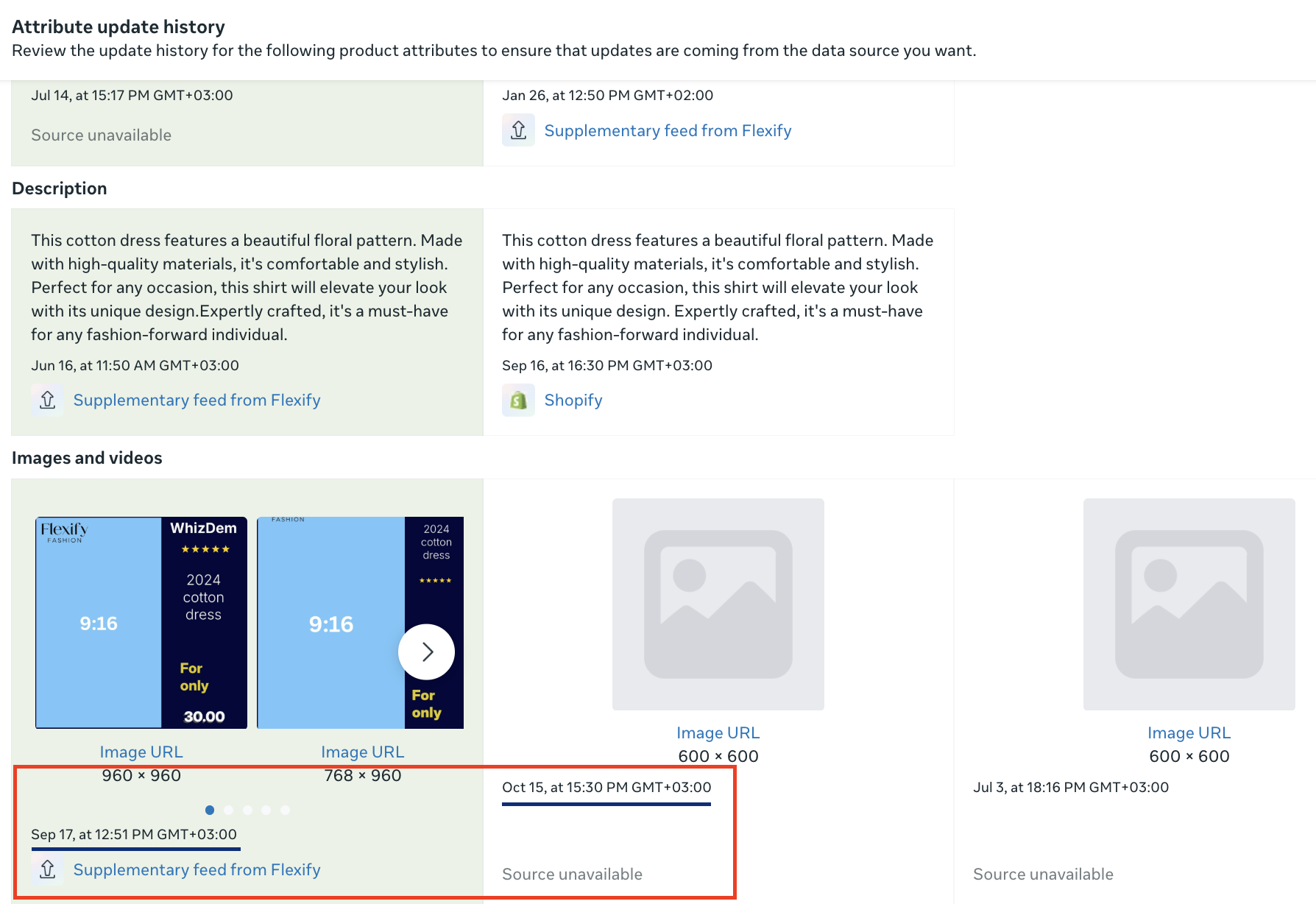
- Finally, open an affected variant in Meta Commerce Manager and review its Attribute Update History and any automatically applied media updates. This can help identify images or videos added or modified by Meta independently of your connected catalog feeds.
For Extension mode setup instructions, see Add Flexify as a Supplementary Feed.
Confirm the images received by Meta #
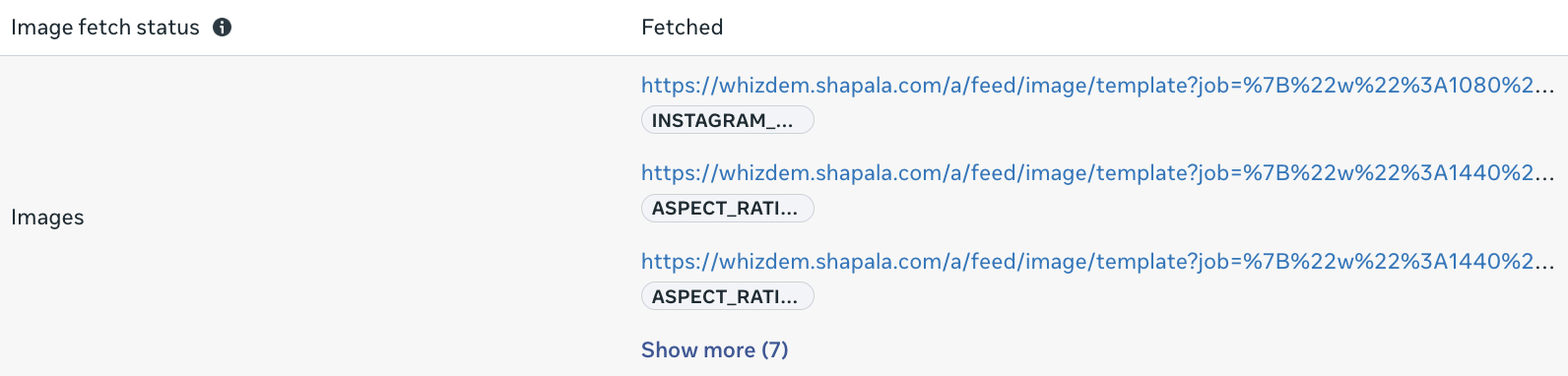
As a final check, open an affected variant in Meta Commerce Manager and go to Details → Show more attributes.
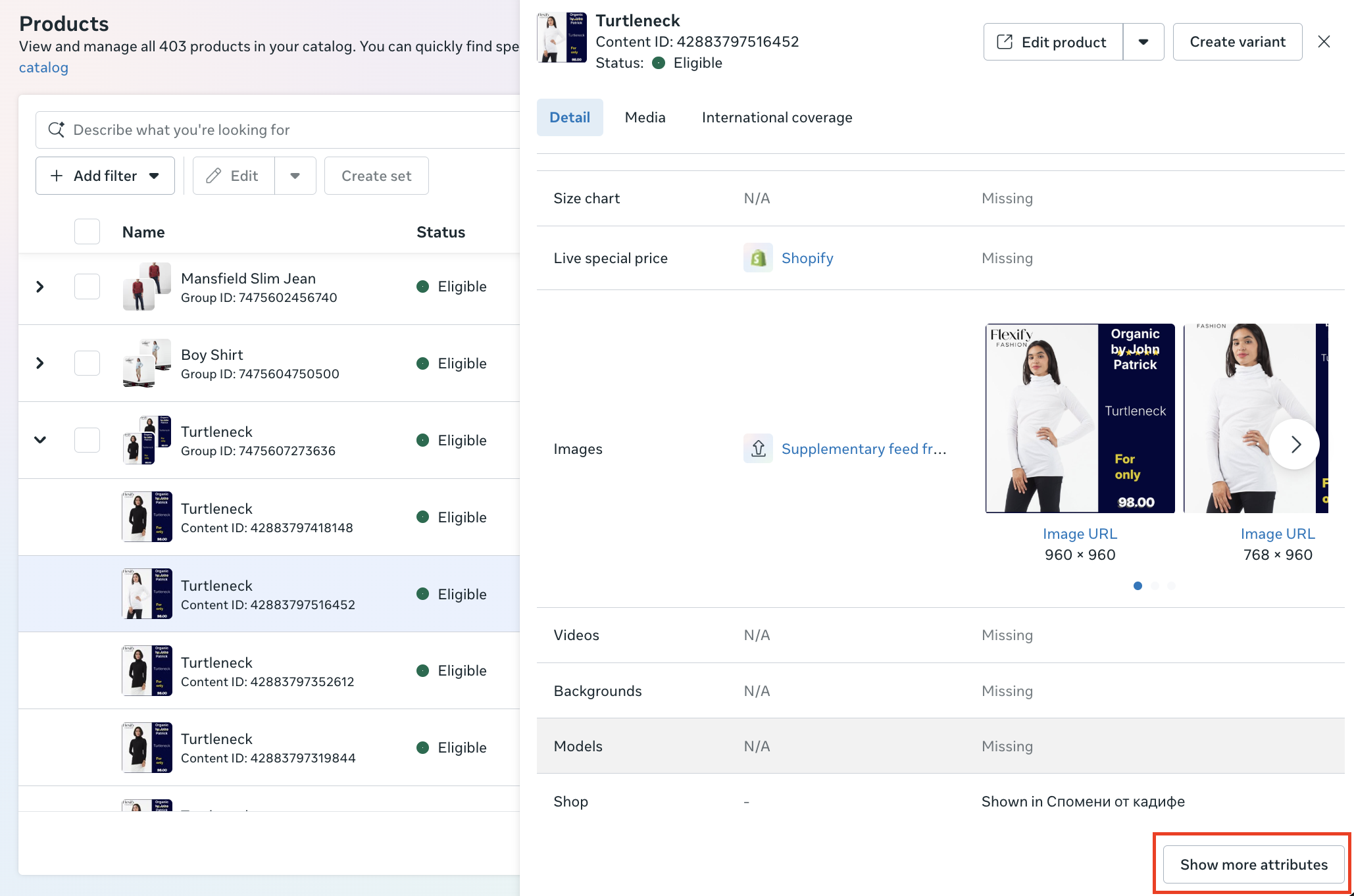
Check:
- Image fetch status - this should show as Fetched
-
Images - confirm that the Flexify image URLs are listed, including the relevant preferred image tags such as
INSTAGRAM_PREFERRED,ASPECT_RATIO_4_5_PREFERRED, andASPECT_RATIO_9_16_PREFERRED
If the expected image URLs and tags are present and the image fetch status is Fetched, this confirms that Meta has successfully retrieved the expected images. Check the Attribute Update History to verify which data source provided the image information.
If the expected images are correctly available in the Meta catalog but the ad still looks different, Meta may be selecting, adapting, or transforming the image when serving the ad.
Check Meta's automatic media and AI settings #
Meta can automatically add, update, or modify product images and videos independently of your connected catalog feeds. These updates are not synchronized with the Flexify supplementary feed and may cause Meta to display different media than expected.
Important: If you use Flexify to manage your catalog media, we recommend disabling all automatic image and video updates in Meta to prevent conflicting changes.
1. Disable automatic catalog media updates #
In Meta Commerce Manager, open your catalog and go to Settings → Catalog.
- Under Automatic updates to your shop, click Edit and disable all automatic image and media updates.
- Disable Automatic product video updates, including all available video sources:
- Website videos
- Instagram post videos
- Similar product videos
- Ad creative videos
These settings allow Meta to automatically introduce or modify catalog media without receiving those changes from Flexify.
2. Disable automatic ad-level optimizations #
In Meta Ads Manager, review the affected catalog ad and disable any automatic settings that can modify your product media, including:
- Automatic image or media enhancements
- Automatic cropping or creative adjustments
- AI or generative image transformations
The names and availability of these settings may vary depending on your campaign and Meta Ads Manager interface.
If you use Flexify's 4:5 or 9:16 Image Templates, you can keep Adapt to placements enabled while disabling other automatic creative enhancements. See Create 1:1, 4:5, and 9:16 Images for Meta Advantage+ Catalog Ads for details.
3. Verify your catalog data sources #
If you use the Shopify Product Catalog together with the Flexify supplementary feed, make sure the Flexify Supplementary Feed is configured as the single and only data source for Image, Additional Image Link, and Video (if applicable) under Data Sources → Configure Sources.
Note: Disabling Meta's automatic media updates does not disable your regular Shopify or Flexify feed synchronization. It prevents Meta from independently introducing images and videos from other sources.
After making changes #
Changes can appear at different times depending on where you check them:
- The Flexify Product Preview Page reflects the latest product and variant data available to Flexify from Shopify.
- The Flexify feed is updated after you click Update Feed on the app's Overview page or when the next scheduled feed generation runs.
- The Meta catalog is updated after Meta fetches and processes the latest version of the feed.
If you have just changed an image or Image Template, make sure the updated image first appears in the generated Flexify feed before checking Meta.
For more information about feed and catalog update timing, see Products won't sync.
Need help? #
If Meta continues to display an unexpected image, contact us at [email protected].
Please include:
- the affected product or variant (public Shopify URL or ID)
- a screenshot of the Attribute Update History
- a screenshot of the Data Sources page for the affected catalog
- screenshots of the relevant settings under Automatic updates to your shop and Automatic product video updates
- if you use the Shopify Product Catalog with Flexify Extension mode, screenshots of the Image, Additional Image Link, and Video (if applicable) settings under Configure Sources.
This will help us determine whether the unexpected image comes from Flexify, another catalog data source, Meta's image selection, or a media transformation applied when the ad is served.