
In busy feeds where shoppers are scrolling quickly, your ads need to stand out and grab attention. Image Templates make this easy by automatically applying eye-catching designs to your product images. With this feature, you can create scroll-stopping ads without needing a designer or spending extra time on manual edits.
What are Image Templates? #
Image Templates are pre-designed layouts that you can apply to your product images. They help you:
- Highlight sales events, like Black Friday or seasonal promotions
- Keep your ads looking professional and consistent
- Save time by skipping manual design work
- You can also upload your own background images and overlays, to better match your brand’s style.
When you select a template, it can add design elements such as a background, overlays, product attributes as text, and sale tags to your product images. You can also upload your own custom overlays to better match your brand’s style.
How to Set Up an Image Template #
- Go to the Image Template tool. You’ll see a preview of your images along with design options to choose from.
-
Choose a design. Select one of the available Image Template designs. The design previews use real product images, making it easier to see how a layout may look with actual product content.
You can also select different sample products in the editor preview to check how the design works with different product images.
Editor layout: Available Product image, Overlay, and Text layers that are not currently active are shown as collapsed cards. Switch on a layer to activate it and open its settings. This keeps the editor compact while making all available template elements easy to find. -
Adjust and add product images. Every Image Template includes Product image 1, and you can activate up to two additional product image layers - Product image 2 and Product image 3.
For each product image layer, you can:- choose which Shopify product image to use
- use Fit, Fill, or Extend
- adjust its position, size, and rotation
To add another product image to the design, switch on Product image 2 or Product image 3 and select the image you want to use.
Note: When a template uses additional product images, Flexify automatically adds an image-count condition based on the images required by the template. If a product does not have enough images, Flexify skips that template and applies the next matching active template, if available. If no other active template matches, Flexify falls back to the product’s featured image without applying an Image Template. - Add overlays (optional).
Switch on Overlay 1 and/or Overlay 2 to add a logo, banner, badge, or other graphic. Each active overlay can be positioned and resized separately:
- Adjust its position and size with the sliders until it looks right.
- If needed, upload a new overlay or remove the current one.
- Add text layers (optional). Switch on the available Text layers as needed. You can use up to two additional text layers for promotional messages, campaign text, or other custom content, and adjust each layer separately.
You can also use an additional text layer to create a shadow effect behind your main text.
- Add a price badge (optional). The Price Badge layer lets you display pricing information directly on your product images, including:
-
Price
-
Compare-at price
- Discount (as % or amount)
-
Price
- Preview your template. On the right-hand side, you’ll see previews of your template applied to different product images. This helps you check that the design works as expected across different products.
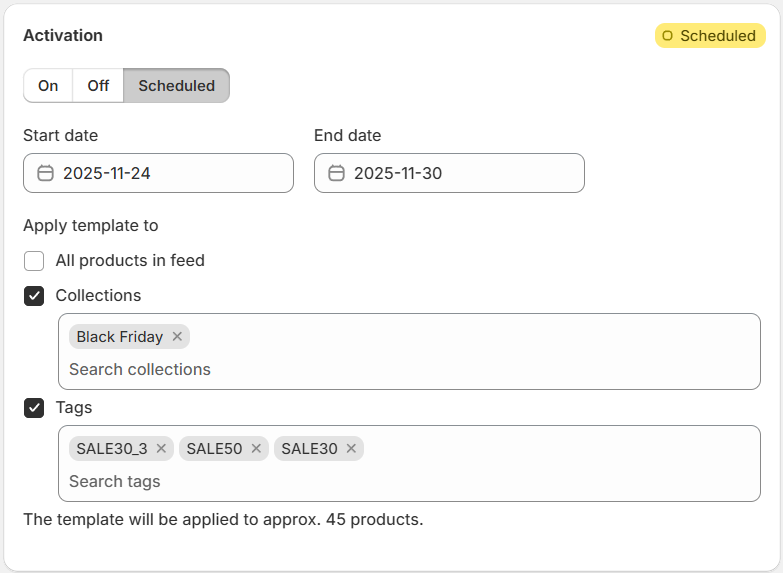
- Activate your template. At the top, toggle On to make the template active. You can also schedule activation for a future date, which is useful for time-sensitive promotions like holiday sales.
-
Apply templates to specific products using filters.
Image Templates can be applied selectively using collection and tag filters. This is useful when targeting a specific group of products, such as seasonal collections or promotional items.
- Select one or more collections (e.g. Black Friday)
- Add relevant product tags (e.g. SALE30_4)
- Or choose to apply the template to all products in the feed
Manage multiple Image Templates #
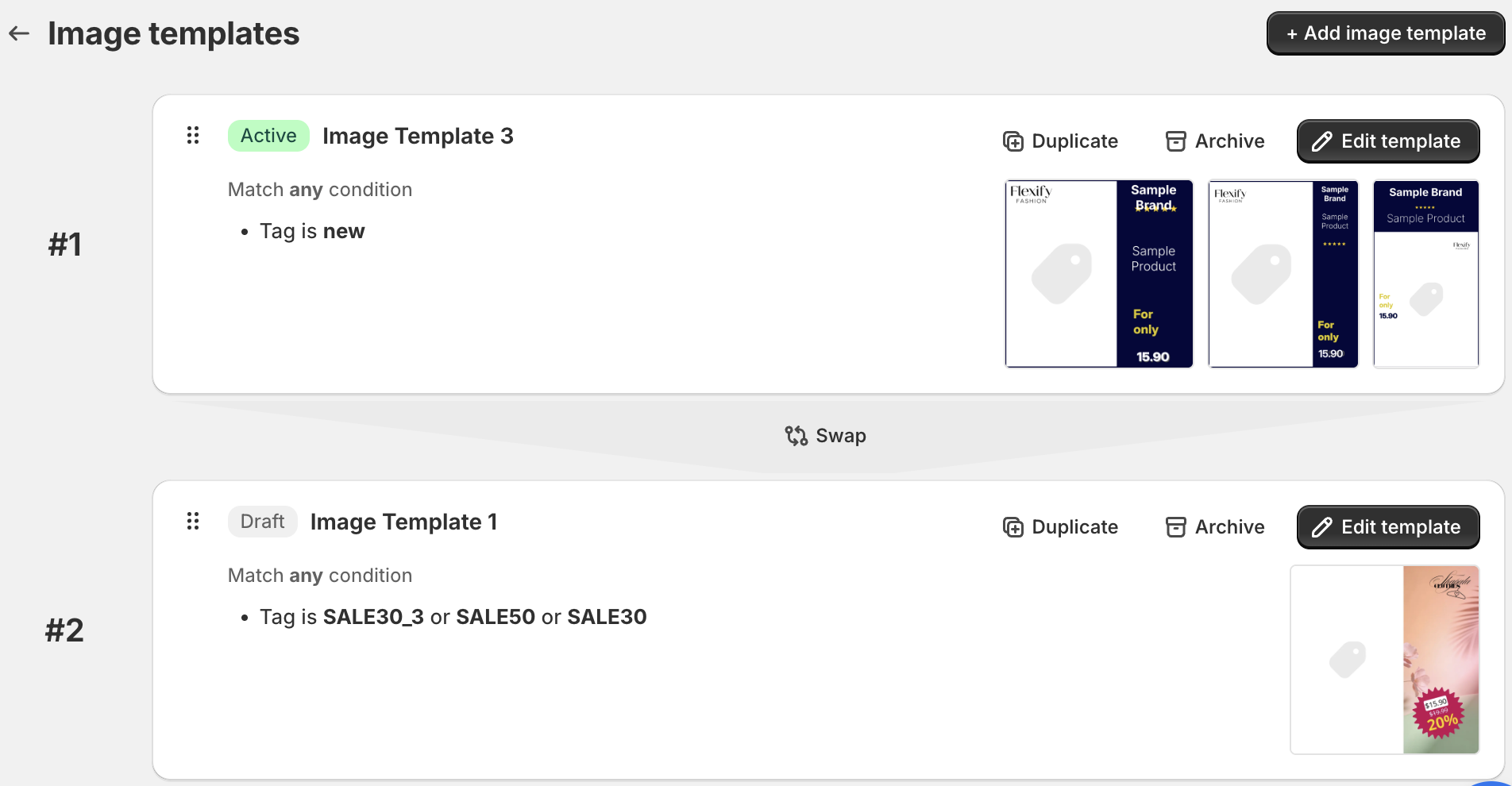
You can create and activate multiple Image Templates at the same time. Each template can use its own product filters, design, and schedule, so different groups of products can use different image designs.
If more than one active template matches the same product, the template higher in the list is applied. Use Swap to change the template order and priority.
If a template requires more product images than a product has, Flexify skips it and checks the next matching template in the list.
From the Image Templates list, you can also:
- Duplicate a template to create a new one based on an existing design
- Archive templates you no longer need in the main list
- Restore archived templates when you want to use them again
-
Swap templates to change their priority.
Use Cases #
Here are some ways you can make the most of Image Templates:
- Black Friday and Cyber Monday: Add bold “Sale” design elements that immediately catch attention.
- Seasonal promotions: Refresh your ads with designs tailored to Spring, Summer, Fall, or Winter.
- Holiday campaigns: Use festive templates for Christmas, Valentine’s Day, or Halloween to stand out in holiday feeds.
- Brand launches: Upload your own branded overlays to create a unique, professional look without a designer.
-
Limited-time offers: Schedule templates so your ads automatically update when the promotion starts, saving you setup time.
Technical Details #
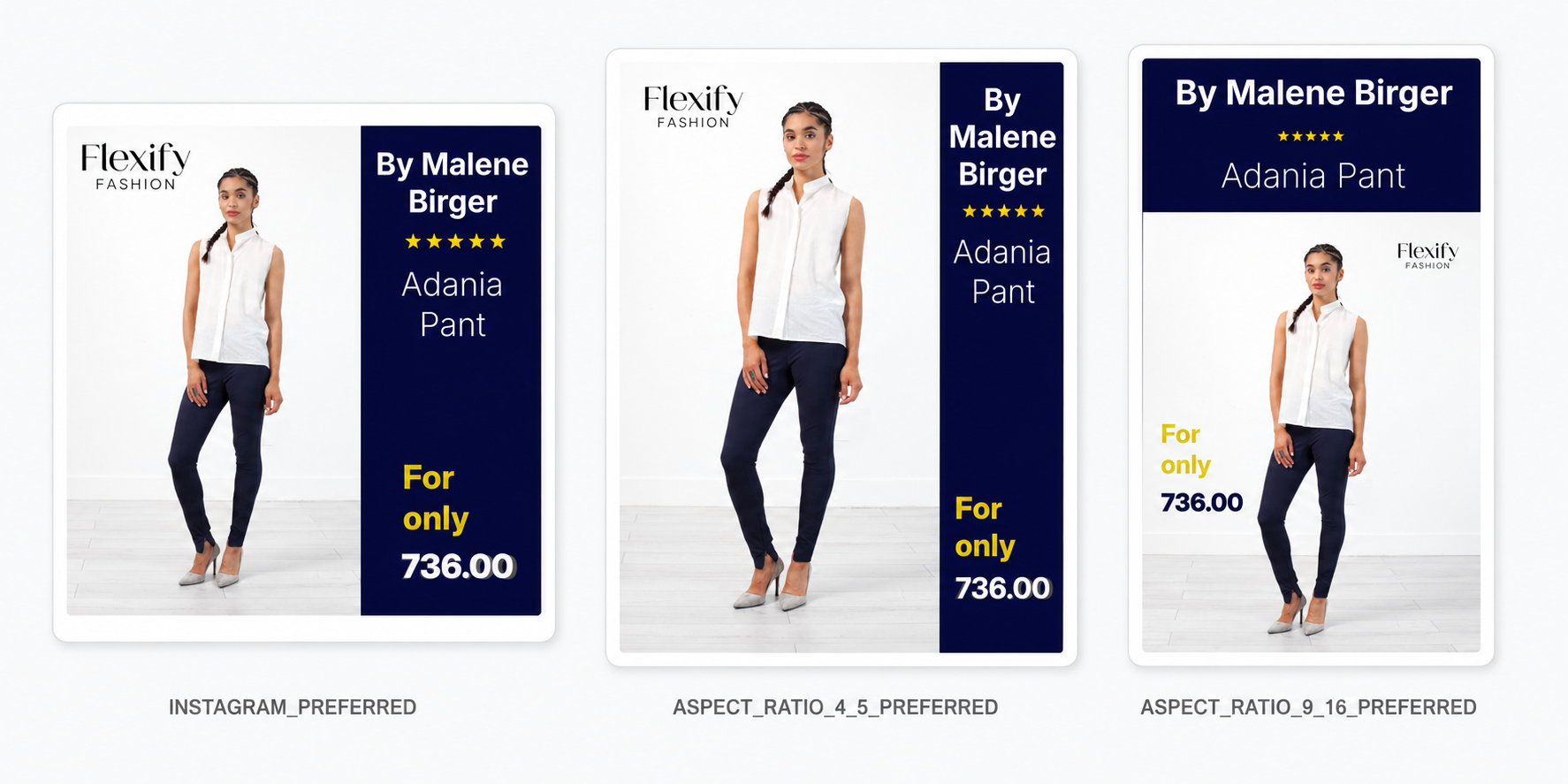
- Image Templates support 1:1, 4:5, and 9:16 output formats. All formats use the same template data, while the layout and positioning of elements can be adjusted separately for each aspect ratio. Flexify automatically adds the relevant image format tags to your feed.
See Create 1:1, 4:5, and 9:16 Images for Meta Advantage+ Catalog Ads for setup instructions. - Custom overlays should be uploaded as PNG files with transparent areas where needed.
- Recommended size: 1080 x 1080 pixels, up to 10 MB.
- PNG format is required to maintain transparency and fast performance across your catalog.
Adjust the product image #
When applying a template, you’ll want your product image to display correctly within the design:
-
Fit
The image scales down or up so the entire product image fits within the selected output format. Nothing gets cut off, but this may leave empty space around the edges, depending on the original aspect ratio. -
Fill
The image fills the selected output format. This avoids empty space, but it may crop part of your product image if the aspect ratio doesn’t match the frame. -
Extend
Extend adds pixels around the original image instead of cropping it. It fills the extra space by extending the edge pixels, creating a natural-looking background while keeping the product intact. This is especially useful when adapting a source image to a different output aspect ratio.
💡 Tip: Use Extend when you want to preserve the full product image while adapting it to the selected output format.
Adjust the price badge #
Choose or Upload a Badge Design
Pick a badge from the gallery, or click Upload price badge to use your own design.
To remove your custom badge and go back to the default selection, click Reset price badge.
Enable Show price badge only on discounted products if you only want the badge to appear when a compare-at price exists.
This is useful for sales campaigns, because full-price items won’t show an empty discount badge.
Position and Size Controls
Each badge element can be adjusted individually:
- Image (badge background)
- Price
- Compare-at price
- Discount
For each element, you can fine-tune:
- X and Y position
- Width (W) and Height (H)
This gives you full control over placement, even for different badge shapes.
Text Settings (Price, Compare-at, Discount)
For each text layer, you can configure:
- Font
- Font weight (Regular / Bold)
- Text colour
- Alignment
- Prefix and suffix (e.g. “$”, “%”, “Save”)
For the Discount layer, you can choose whether it shows:
- Percentage (e.g. 25%)
- Amount (e.g. $15)
Important Disclaimer (Meta Ads)
If you use the Flexify price badge feature, Meta’s own dynamic overlays must be disabled.
In Advantage+ Catalog Ads, go to:
- Advantage+ creative
- Enhancements
- Disable Add dynamic overlays
Otherwise, Meta may add its own price overlays on top of your badge.
Tips for Best Results #
- Keep your logo overlay small so it doesn’t distract from the product.
- Preview across different products to ensure the design works well on all image types.
- Use scheduling to prepare promotional campaigns ahead of time.
- Upload custom overlays to better align your Image Templates with your brand identity.
- Choose bold, high-contrast designs that stop the scroll and highlight your message.
- If your template uses additional product images, preview products with different numbers of images and make sure a suitable fallback template is available where needed.
How to remove an Image Template from your Meta catalog
#
Important: Removing or disabling individual overlay, text, or price badge layers does not disable the Image Template itself. If you no longer want a template to be applied to matching products, make sure the template is switched Off.
If an Image Template has already been applied to your Meta catalog and you no longer want to use it:
- Go to Flexify → Image Templates → Edit Template and switch the template Off. If you no longer need the template, you can archive it afterwards from the Image Templates page.
- Go to the Flexify Overview page and click Update Feed to regenerate your feed.
- In Meta Commerce Manager → Catalog → Data Sources, open your Flexify feed.
- Open the feed's Settings page and click Request Update Now.
- Allow some time for Meta to refresh the catalog images, as Meta controls when updated images are crawled and processed.
Note: Turning off the template in Flexify does not immediately remove the template-generated image from Meta. Meta needs to process the updated feed before the Image Template version is replaced.
Usage Notes #
How Activation Works With Image Optimization
- If Image Optimization is turned on, activating Image Templates will take priority and overwrite optimized images in your feed.
- When templates are switched off, optimized images are automatically restored.
Monthly allowance and pricing
Your plan includes 500 free image transformations every month. After that, every additional 1,000 transformations costs $4.
Billing is per unique image
You are only billed for a transformation once per new image generated - not per impression or reuse. If the same generated image is displayed multiple times, it is not charged again.
What counts as a billable event
A new transformation is billed only when:
- The template changes
- The product image changes
If neither changes, the image is considered the same and is not billed again.
Rollover credits
Transformation credits never expire. Any unused credits will automatically roll over to future months.
Cost example
If you typically generate around 1,000 new images per month, your out-of-pocket cost would be approximately $4 every two months.
Managing multiple templates and versions
Keep track of template variations to avoid triggering unnecessary new transformations. Even small edits to a template create a new billable version once an image is generated from it.
Recommended workflow when redesigning templates
To help avoid additional image template charges while redesigning, create a second image template and keep it turned off while you work on the new design. Adjust and test that inactive template until the design is final. Avoid forcing full catalog refreshes or large product resyncs while experimenting, and test on a small product set or test collection first, where possible. Only turn the new image template on once the final design is approved. After that, run one final feed update and monitor your remaining free and paid image credits.
Important: Avoid keeping an image template active while you are still experimenting. Active templates can generate new images during feed generation, catalog refreshes, or Meta recrawls.
How feed updates and crawler sync work
When you update an active image template, Flexify updates the feed immediately. However, Flexify does not control when Meta’s crawler fetches the updated feed data. Once Meta detects updated image URLs in the feed, it may recrawl and download those images on its own schedule. This can lead to additional image generation and related costs if an active template is still being changed while you are experimenting.
Track Usage
On the Flexify Overview page, you can monitor your overall image usage - showing both optimization and template transformations, along with your remaining free and paid credits. Quickly checking this helps you keep track of consumption for billing and budgeting purposes.