
Flexify Image Templates let you generate different aspect ratios for eligible Meta catalog ad placements, including Feed, Stories, and Reels.
Supported image formats #
You can add multiple formats to the same Image Template, including:
- 1:1 for square placements
- 4:5 for portrait placements
- 9:16 for full-screen placements such as Stories and Reels
All enabled formats belong to the same Image Template and contain the same underlying template data and elements.
However, you can adjust how the template is displayed for each format. For example, you can change the size and position of the product image, text, overlays, and price badges so that the design fits each aspect ratio correctly.
How to add multiple formats #
Open the Image Templates section in Flexify and create a new template or edit an existing one.
In the Image Template editor:
- Open the format selector.
- Add the formats you want to use.
- Select each format separately.
- Adjust the size and position of the template elements for that aspect ratio.
- Preview the design with different products.
- Save the template when all formats are ready.
The same template content is used across the enabled formats, but its layout can be adjusted separately for 1:1, 4:5, and 9:16.
Use safe zones for Meta placements #
Meta interface elements can cover parts of images displayed in Feed, Stories, and Reels.
Use the safe-zone overlay in the Image Template editor to check that important content remains visible, including:
- product details
- prices
- discount badges
- logos
- promotional text
The safe-zone overlay automatically adapts to the selected image format.
For more information, see Safe Zones.
What Flexify adds to the feed #
You do not need to add or manage image format tags manually.
When additional formats are enabled, Flexify automatically:
- generates the corresponding image versions
- adds them as additional images in the feed
- includes the relevant
<image><tag>values as format and placement hints for Meta
For example:
<image>
 <url><![CDATA[https://example-image-url]]></url>
 <tag><![CDATA[ASPECT_RATIO_4_5_PREFERRED]]></tag>
</image>
Depending on the enabled formats, the feed can include tags such as:
INSTAGRAM_PREFERREDASPECT_RATIO_4_5_PREFERREDASPECT_RATIO_9_16_PREFERRED
These tags are added automatically based on the formats configured in the Image Template editor.
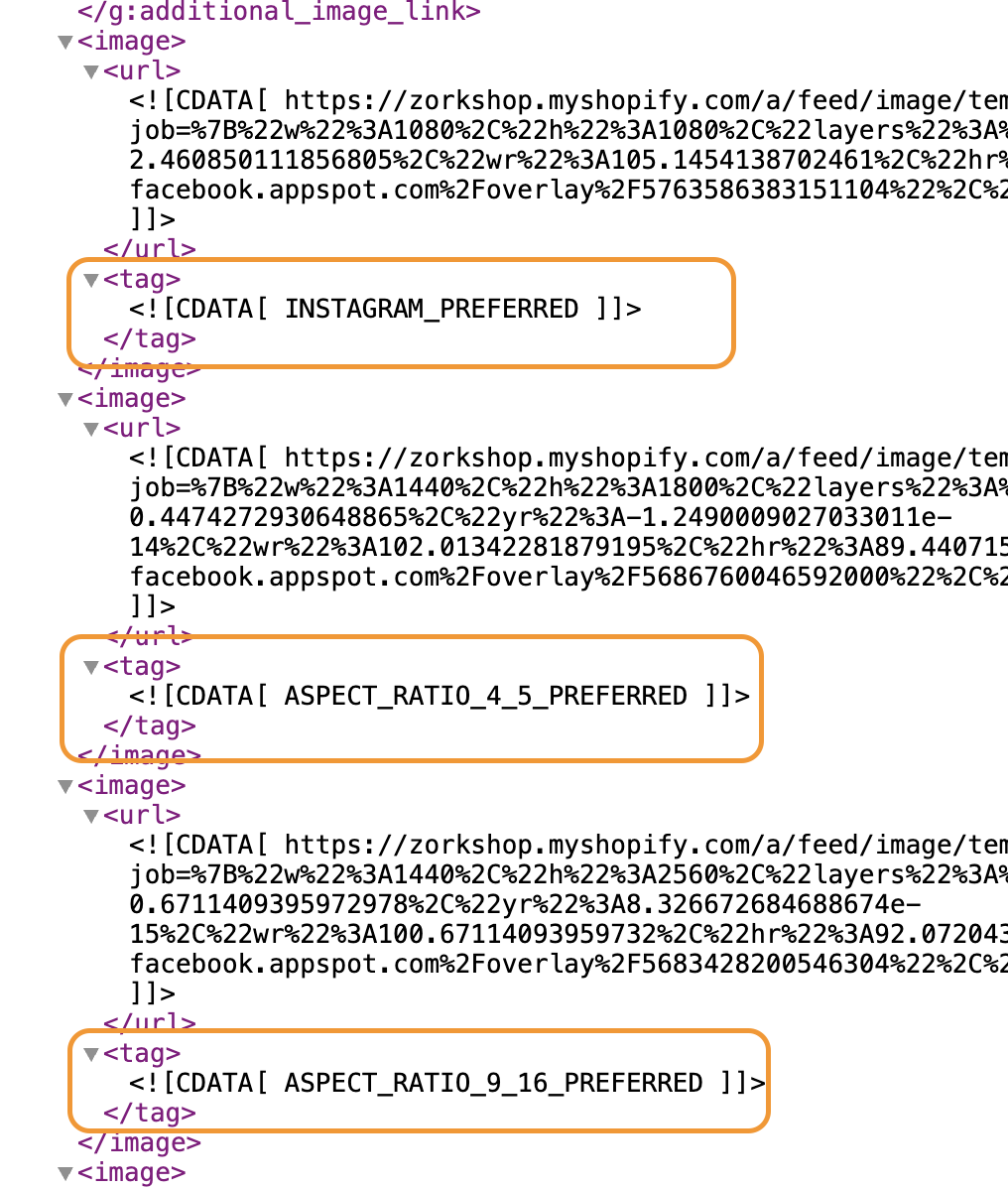
How Meta uses the image tags #
The tags help Meta identify which generated image is intended for an eligible platform, placement, or aspect ratio.
For example:
INSTAGRAM_PREFERREDindicates that the image is preferred for InstagramASPECT_RATIO_4_5_PREFERREDindicates that the image is preferred for eligible 4:5 placementsASPECT_RATIO_9_16_PREFERREDindicates that the image is preferred for eligible 9:16 placements
The tags act as selection hints. Final image delivery is controlled by Meta and can depend on:
- the selected placement
- the ad format
- placement eligibility
- campaign and creative settings
- the available images for the product
Adding a tag does not guarantee that Meta will always display that specific image.
Enable Adapt to placements in Meta #
For Meta to make use of the different image aspect ratios across eligible placements, enable Adapt to placements in the catalog ad creative settings in Meta Ads Manager.
When this option is enabled, Meta checks the available product images and can select a more suitable aspect ratio for the placement.
If several images are available, the format tags can help Meta identify the preferred image. If no suitable format is available, Meta may use its default presentation or adapt another product image.
Before enabling this option, review your generated image formats and make sure important content remains within the appropriate safe zones.
Recommended Meta creative settings #
For the most predictable use of your Flexify-provided images:
- enable Adapt to placements
- disable other automatic creative or image enhancement options that can modify the product media
- disable AI or generative image transformations
- allow several hours for Meta to refresh the creative and placement previews in Ads Manager
Other Meta creative enhancements can alter the original catalog media and make it harder to determine which image or aspect ratio Meta is using.
Note: Meta controls the final image selection and delivery. The available settings and their names may change over time.
Image generation and usage #
Each additional enabled format can generate another image for every matching product.
Before enabling new formats for a large product set:
- finish adjusting the formats while the template is inactive
- preview the design with several products
- test on a small product set or collection where possible
- activate the template only after all formats are ready
- monitor your remaining free and paid image credits
For complete information about configuring and managing Image Templates, see How to Use Image Templates to Make Your Meta Catalog Ads Stand Out.
Need help? #
If you need help adding multiple formats or checking the generated image tags in your feed, contact our support team at [email protected].