
This setup is useful if your advertising images are created outside Flexify and you want to control which images are provided to Meta for different aspect ratios and placements.
Step 1: Create your Shopify metafields #
First, create custom metafields in Shopify for the images you want to provide.
You can create them at:
- Product level - use this when all variants of a product should use the same custom images. For example, a T-shirt with different sizes can use the same preferred 1:1, 4:5, and 9:16 images for every size.
- Variant level - use this when variants need different custom images. For example, different color swatches can each have their own preferred image formats.
- Both levels - you can use product and variant metafields across your catalog depending on how individual products and variants are structured.
If both levels are used, the more specific variant-level value can be used to override the product-level image.
Your metafields can contain Shopify image/file references or image URL values supported by the Flexify mapping. Shopify metafield definitions let you choose the resource, namespace/key, and data type for the custom field.
For instructions, see Shopify's guide to creating custom metafield definitions.
Shopify - Creating custom metafield definitions
Step 2: Add your custom images #
Add the appropriate image values to the Shopify product or variant metafields you created.
For example:
- 1:1 image
- 4:5 image
- 9:16 image
- optional Stories or Reels images
Enter the values directly on the relevant Shopify product or variant page. See Shopify’s guide to adding values to metafields.
For larger catalogs, you can also use Shopify’s bulk editor or a metafield app, as long as it writes to the same metafields that you map in Flexify.
Step 3: Map the metafields in Flexify #
In Flexify, go to Catalog fields → Metafields → Manage, add your custom metafields, and map them to the appropriate Meta image-tag fields. Flexify supports product and variant metafield mappings for custom catalog fields.
Supported image tags include:
-
INSTAGRAM_PREFERRED- 1:1 -
ASPECT_RATIO_4_5_PREFERRED- 4:5 -
ASPECT_RATIO_9_16_PREFERRED- 9:16 -
STORY_PREFERRED -
REELS_PREFERRED
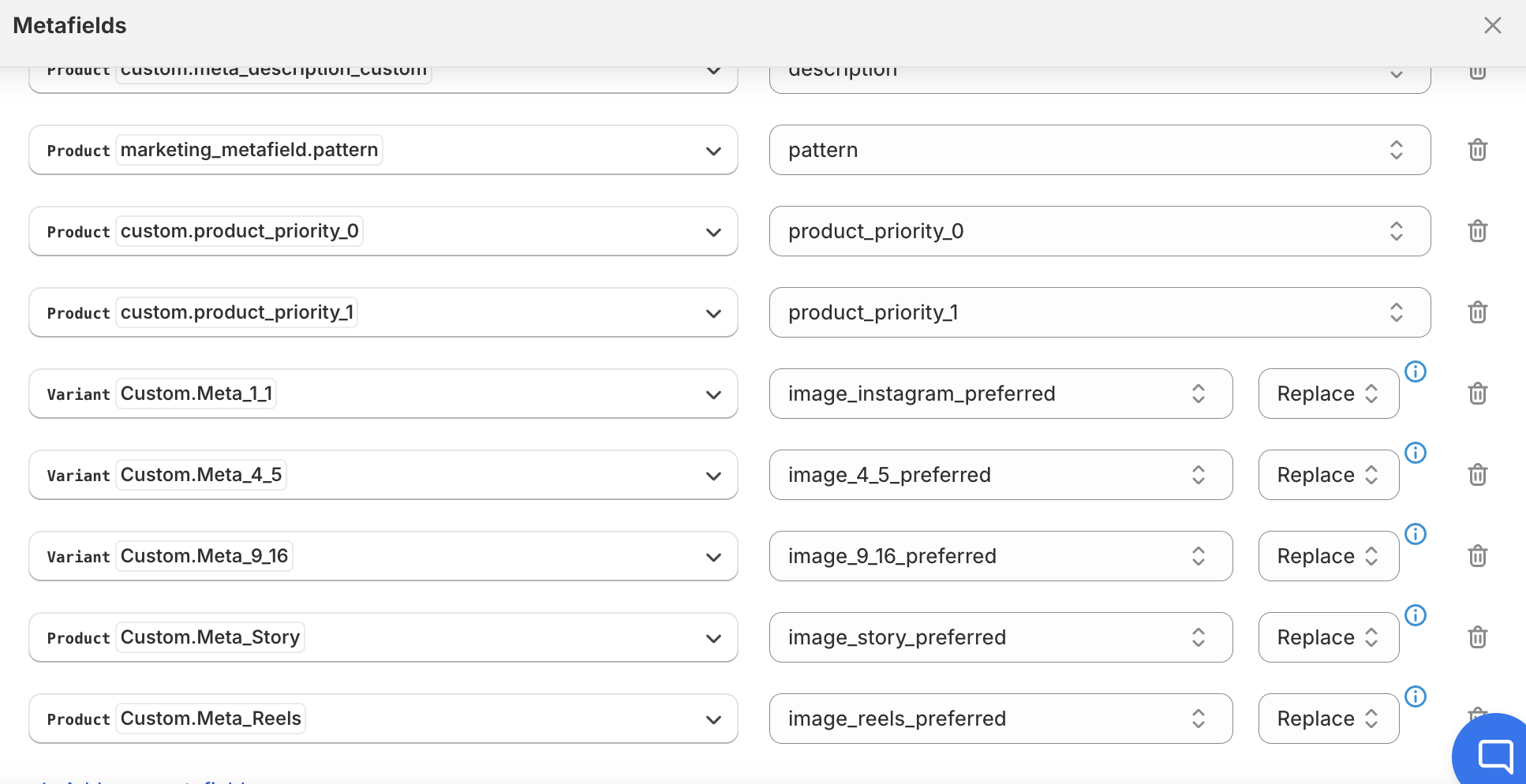
For a general walkthrough of metafield mappings, see Automatically Set Catalog Fields.
Choose how the mapped images are applied #
Depending on the mapping, you can control how the metafield image interacts with existing values:
- Replace - replace the existing value with the metafield image
- Append - keep the existing images and add the metafield image after them
- Prepend - add the metafield image before the existing values.
Step 4: Exclude these products from Image Templates #
If you provide your own tagged images through metafields, do not also apply Flexify Image Templates to the same products.
If you use Image Templates for other products, use the template's product filters so the products using custom metafield images are not matched.
For more information, see How to Use Image Templates to Make Your Meta Catalog Ads Stand Out.
Step 5: Check your images in Flexify #
Open the affected product on the Flexify Product Preview Page.
Under Feed output, confirm that your custom images appear under the expected groups, such as:
- Preferred 1:1
- Preferred 4:5
- Preferred 9:16
This lets you verify the tagged images before checking the item in Meta.
Step 6: Check your Meta creative settings #
For Meta to make use of the different aspect ratios across eligible placements, enable Adapt to placements in your catalog ad creative settings.
For the most predictable results, also disable Meta settings that can modify the media, including automatic image enhancements, creative adjustments, and AI or generative image transformations. Meta ultimately controls which eligible image is displayed.
For more details, see Create 1:1, 4:5, and 9:16 Images for Meta Advantage+ Catalog Ads.
Need help? #
If the custom images do not appear as expected, contact us at [email protected] and include the affected product or variant IDs.